 Day One Fixes
SolvedHow-toUpdated 2025-10-01
Battlefield 6: How to Disable Aim Blur (Depth of Field)
Short answer
Get a competitive edge in Battlefield 6 by completely turning off the annoying blur effect when you aim down sights (ADS). Our simple guide shows you how to edit a config file to disable weapon Depth of Field for maximum visibility.
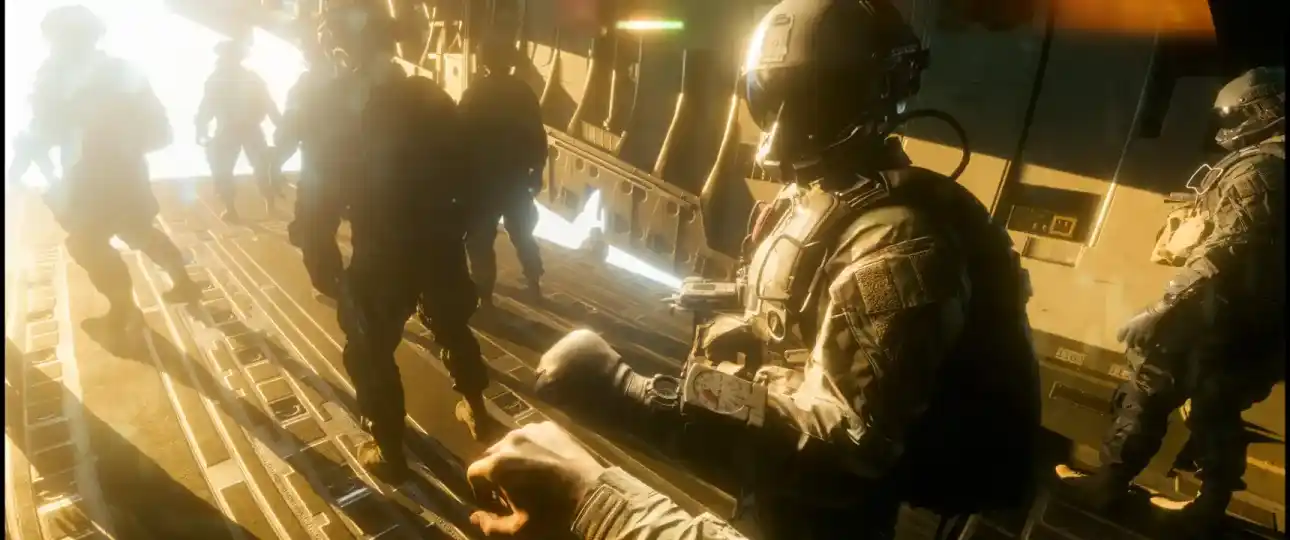
Get a competitive edge in Battlefield 6 by completely turning off the annoying blur effect when you aim down sights (ADS). Our simple guide shows you how to edit a config file to disable weapon Depth of Field for maximum visibility.
Battlefield 6: How to Disable Aim Down Sights Blur (DOF)
Let’s be real, that cinematic blur effect when you aim down sights in Battlefield 6 looks cool, but it’s a major L for competitive play. This effect, known as Depth of Field (DOF), blurs your surroundings to focus on your target, but it can also make it harder to spot enemies in your peripheral vision.
If you’re tired of losing targets in the blur, don’t sweat it. There’s a super simple, safe tweak you can make to a config file to turn this feature off for good. This will give you a crystal-clear sight picture at all times, just like the pros.
Step 1: Find Your Battlefield 6 Config File
First things first, you need to find the settings file that controls all your in-game options. It’s not in the main game folder, so don’t go looking there.
Navigate to this exact folder on your PC. Just make sure to replace "YourUsername" with your actual Windows username.
C:\Users\YourUsername\Documents\Battlefield 6\settings\steam
Inside this folder, you’re looking for a specific file named PROFSAVE_profile. This is the one we’re going to edit.
Step 2: Edit the PROFSAVE_profile File
Now that you’ve found the file, you need to open it with a simple text editor. Notepad is perfect for this.
Right-click on PROFSAVE_profile and select “Open with,” then choose Notepad. You’ll see a massive wall of text containing all your game settings.
Don’t get overwhelmed. We’re looking for one specific line. On your keyboard, press Ctrl + F to open the search box, and type in this exact command:
GstRender.WeaponDOF
Press Enter, and it will jump you straight to the line we need to change.
Step 3: Change the Value and Save
The search will highlight a line that looks like this:
GstRender.WeaponDOF 1
In the world of config files, 1 almost always means “On,” and 0 means “Off.” We want to turn it off.
Simply change the 1 at the end of the line to a 0. The line should now look like this:
GstRender.WeaponDOF 0
Once you’ve made the change, go to File -> Save in Notepad to save your changes, then close the file.
Step 4: The Read-Only Trick (Crucial Step!)
This is the most important step to make sure your change sticks. If you don’t do this, the game will likely just overwrite your edit and turn the blur back on the next time you launch it.
- Go back to the folder where you found the
PROFSAVE_profilefile. - Right-click on the file and select “Properties.”
- In the General tab, look at the “Attributes” section at the bottom.
- Check the box next to “Read-only.”
- Click “Apply,” then “OK.”
This locks the file, preventing the game from messing with your custom settings.
A Big Heads-Up: Locking in Your Settings
Setting the file to “Read-only” is a double-edged sword. While it protects your no-blur setting, it also means the game can no longer save any new changes you make in the in-game settings menu.
Because of this, you should get all your other settings perfect first. Dial in your graphics, audio, and keybinds exactly how you want them before you make the file read-only.
If you ever want to change your settings again, you’ll have to:
- Uncheck the “Read-only” box.
- Launch the game and make your changes.
- Close the game, re-edit the
GstRender.WeaponDOFline back to0(the game will have changed it back to 1), and then set the file to “Read-only” again.
Quick Fix Summary
| The Problem | The Fix | The Pro Tip |
|---|---|---|
| Annoying blur effect when aiming down sights. | Edit the PROFSAVE_profile file and change GstRender.WeaponDOF from 1 to 0. |
Set the file to “Read-only” afterward to make the change permanent. |