 Day One Fixes
SolvedFixUpdated 2026-11-04
THE NO BS GUIDE TO FIX YOUR BORDERLANDS 4! Performance…
Short answer
I don't know about you, but I've been absolutely loving Borderlands 4 and its been quite a lot of fun^^ But game runs like crap sometimes : ( Makes me feel not a good. So let's try and fix that (Grain of salt, massive COPE) I'd like to add that all these configurations were not founded by me(some…
Steam Community guide by v3rmm.
NVIDIA Control Panel
Ermmmm. . . I don't know where one would make this change for AMD cards. . So if someone in the comments could maybe help with that? That'd be cool and very dopalicious!
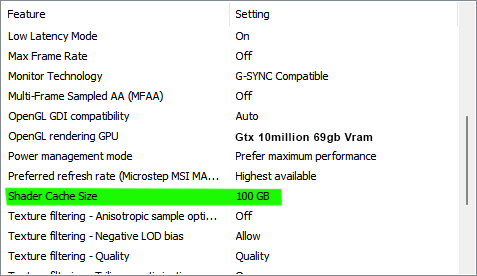
Increasing the shader cache size to 100gb, has proven to show positive results to many people, it may not provide an fps boost, but it'll surely keep a steadier frame rate!
- Locate your Nvidia Control Panel (GOOD JOB!! Now open it.)
- Go to manage 3D settings and make this change under "global" or "program settings"(By selecting the game Exe. Which is located here - - SteamLibrary\steamapps\common\Borderlands 4\OakGame\Binaries\Win64)
- Change Shader Cache Size to 100gb (can't be more complicated than that)
- Apply settings
- Profit. (Maybe, idk)
Get this mod! (Ultimate Engine Tweaks by P40L0X)
This mod posted over on Nexusmods and made by the very talented P40L0X.
Has proven to improve performance quite a bit. Potentially a 5-10 fps gain? Don't know exactly and might vary from spec to spec. But I sure (as well as many others) have seen a performance increase!
(don't ask me how this mod works)
Refer to the mod installation
- -https://www.nexusmods.com/borderlands4/mods/13 - - -
///Ultimate Engine Tweaks
- -https://www.nexusmods.com/borderlands4/mods/13 - - -
INI File changes
The following changes will reduce Lumen (fps sucker and really isn't necessary) and give some much appreciated quality of life, like nuking depth of field for example.
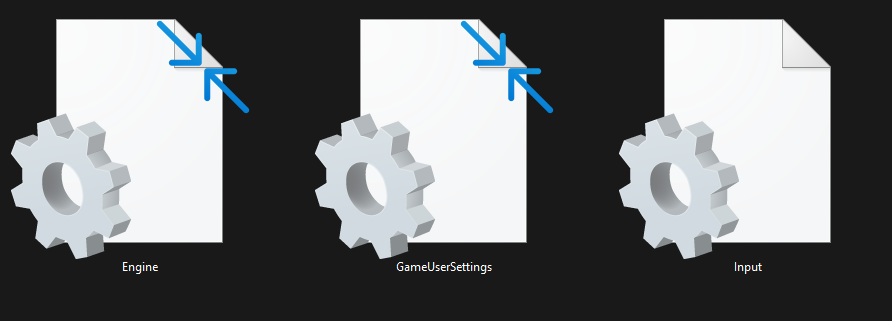
- Locate your "Engine.ini" (The same one we got from the mod above)
((Username)Documents\my games\Borderlands 4\Saved\Config\Windows) - Open it (Congrats you've succesfully opened the file!!)
- Open "Engine.ini" and change the following
Engine.ini
Scroll to the very bottom and add the following configurations
[SystemSettings]
r.SSR.Quality=0
r.oneframethreadlag=1 (0 if you're frames are already good) - - - 0 = More responsive / 1 = More fps with a slight delay dependent on fps
r.fog=0 (This one removes all the fog of the game, so while it might up your framerate, it'll make the game's lighting have a stroke at times, meaning that cutscenes might look brighter than they're supposed to and may introduce weird artificing, feel free to skip this, this is purely a visual preference setting)
r.VolumetricFog=0
r.Depth0fFieldQuality=0
r.MotionBlurQuality=0
r.LensFlareQuality=0
r.Shadow.Virtual.Enable=1
r.Lumen.HardwareRayTracing=1
r.Lumen.Reflections.HardwareRayTracing=1
r.Lumen.ScreenProbeGather.HardwareRayTracing=1
r.LumenScene.DirectLighting.HardwareRayTracing=1
r.BloomQuality=0
r.SceneColorFringeQuality=0
r.MaxAnisotropy=16
r.lumen.reflections.screentraces=0
r.FilmGrain=0
Choose which to keep and which ones to remove, depending on your gaming needs, everyone has their preference. - Save and make the file "read only"
Disable Mouse Smoothing
Why don't devs allow us to have nice things (This is a joke, you can like Mouse Smoothing and its benefits)
To disable it, we're going to have to back to our "config folder", which we discussed earlier (Documents\my games\Borderlands 4\Saved\Config\Windows)
- Make an "Input.ini" file (If you don't know how, google it. Sorry was that mean? I don't mean to be, it's just a little too complicated and I don't wanna make the guide like extra long, just for this one simple step.)
- Input the following
[/script/engine.inputsettings]
bDisableMouseAcceleration=1
bViewAccelerationEnabled=0
bEnableMouseSmoothing=0
RawMouseInputEnabled=1 - Save and make it "Read Only" through the properties tab
- Profit.
OK, I rly hate mouse smoothing so um. . to be SURE, go to "GameUserSettings.ini" and add the following to the bottom
[/script/engine.inputsettings]
EnableMouseSmoothing=False
ViewAccelerationEnabled=False
Reducing File Size (Removing Unnecessary Files)
The game comes bundled in with some Language files, which most won't find the need for. So why not delete them and get like 20+GB of storage back!
Locate "steamapps\common\Borderlands 4\OakGame\Content\Paks"
Delete the following:
/ / / /
pakchunk10-Windows* = Chinese Language
pakchunk11-Windows* = French Language
pakchunk12-Windows* = German Language
pakchunk13-Windows* = Italian Language
pakchunk14-Windows* = Japanese Language
pakchunk15-Windows* = Korean Language
pakchunk16-Windows* = Spanish Language
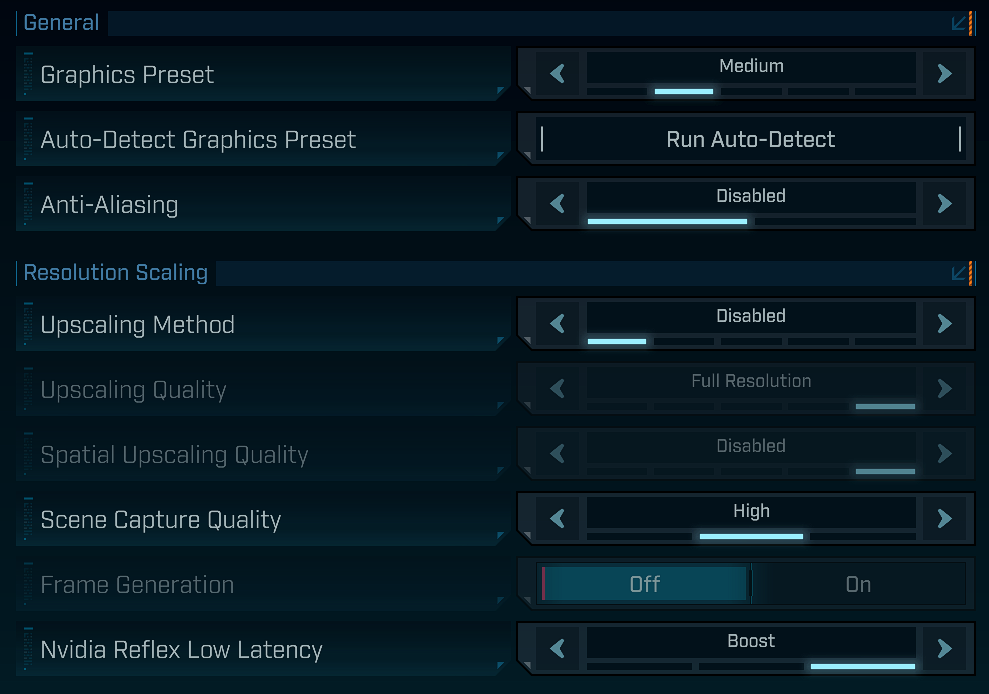
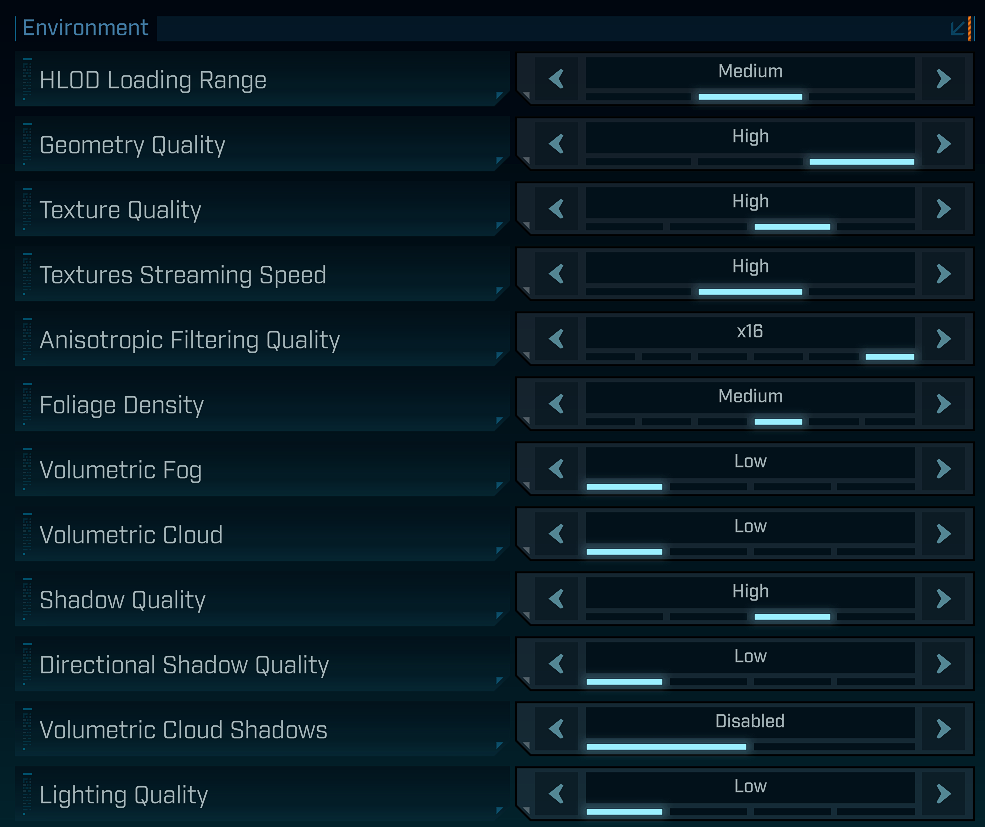
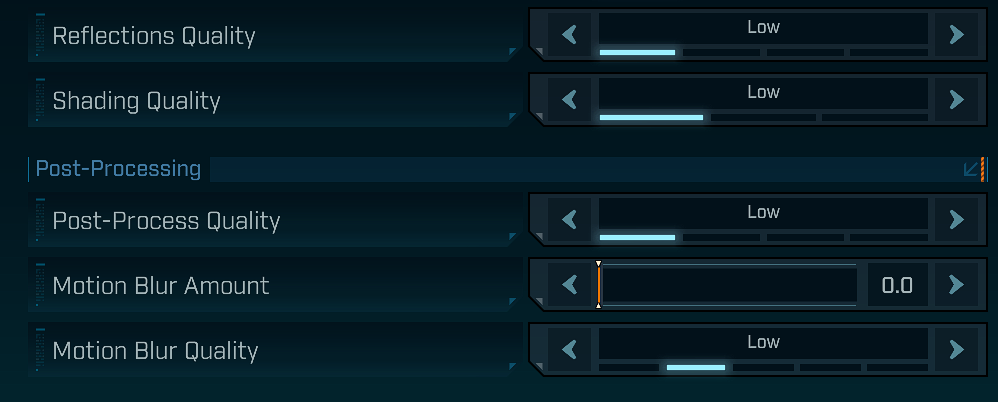
IN GAME Settings
DO the following. . Or don't
I've just found that the following settings give the best balance of frame rate and visual clarity!
Feel free to tinker and find out what works best for you
Disabling Control Flow Guard (CFG) - - Optional
I'm not quite sure if this helps, but it helped in Borderlands 3, in my previous guide.
So might as well do a quick copy & paste
- Windows search "Exploit Protection" - or alternatively go to windows security > app & browser control > exploit protection > exploit protection settings
- Under Program settings///// Add program to customize - then simply locate your borderlands4.exe(The one under binaries) and select it.
- In the editing sceen scroll down to Control Flow Guard(CFG), check "override system settings" and toggle it to "off" and then hit apply
- Profit
MODS
Here you can see the following mods, that give that so ever appreciated Quality Of Life!
https://www.nexusmods.com/borderlands4/mods/60 - Thinner Cel Shading / Remove Cel Shading (Potential FPS boost)
https://www.nexusmods.com/borderlands4/mods/65 - Faster Hold Interactions - Do to things faster. Peak efficiency.
https://www.nexusmods.com/borderlands4/mods/58 - No New Icons - Removes the diamond shaped icon on your newly obtained gear. Which would be cool if it didn't pop up in your loadout all the time.
https://www.nexusmods.com/borderlands4/mods/56 - Faster Rides - Makes the digirunners faster. You can do things faster.
https://www.nexusmods.com/borderlands4/mods/37 - Minimal HUD - Adjust the game's Hud Scale to your liking
https://www.nexusmods.com/borderlands4/mods/25 - No Jakobs Crit Pollution - Apparently Jakobs crit spawn particles, that cause visual pollution.
Pray for more performance patches from Gearbox

Profit. (for now . .)
Congratulations!! You've successfully perfected your game! (hopefully)
Now you can BREAK FREE from the TimeKeeper, in more fps than you first started. (I think)
As always feel free to let me know if this helped you out and if it didn't, I do apologize deeply. Again this is simply a collection of configurations and changes, that have shown signs of FPS improvement.
That'll be all from me. I'll do my best to update this guide as new stuff pop up. Take care everyone!