 Day One Fixes
SolvedHow-toUpdated 2026-11-04
Overwatch: Different Text and Voice Language
Short answer
This guide will show you how to separately set text and voice language in Overwatch 2
Steam Community guide by ptkr.
Changing Text and Voice Language
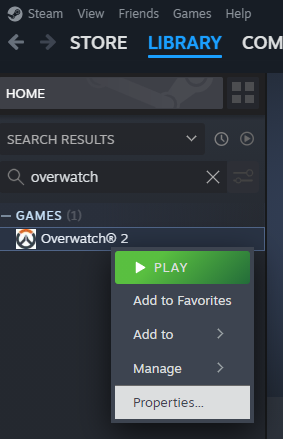
First go to your library, right click on Overwatch and select "Properties..."
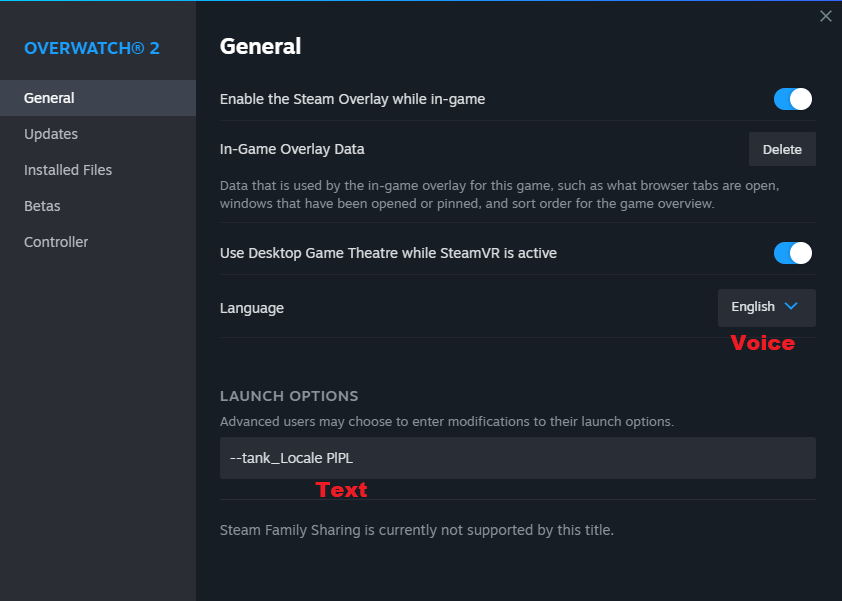
After that select from drop down menu language you want to hear in-game.
To set text language add this line to launch options: --tank_Locale language-you-want
In this example I want to set voice language to English and text language to Polish (so PlPL is the code I used).
Language Codes
These are language codes you want to put in:
- American English: EnUS
- British English: EnGB
- Polish: PlPL
- French: FrFR
- Italian: ItIT
- German: DeDE
- Spanish: EsES
- Japanese: JaJP
- Korean: KoKR
- Portuguese - Brazil: ptBR
- Russian: RuRU
- Spanish - Latin America: esMX
- Simplified Chinese: ZhCN
- Traditional Chinese: ZhTW
Note that Overwatch doesn't support all languages.